How Doezze Time Tracker Works: What It Tracks and How to Use It
A practical walkthrough of Doezze Time Tracker — what data the Windows agent captures, how it flows from device to dashboard, and step-by-step setup for your team.
What is the Doezze Time Tracker?
The Doezze Time Tracker is a silent, automatic productivity companion for teams that want visibility into how work hours are actually spent — without manual timers, timesheets, or privacy-invasive screenshots.
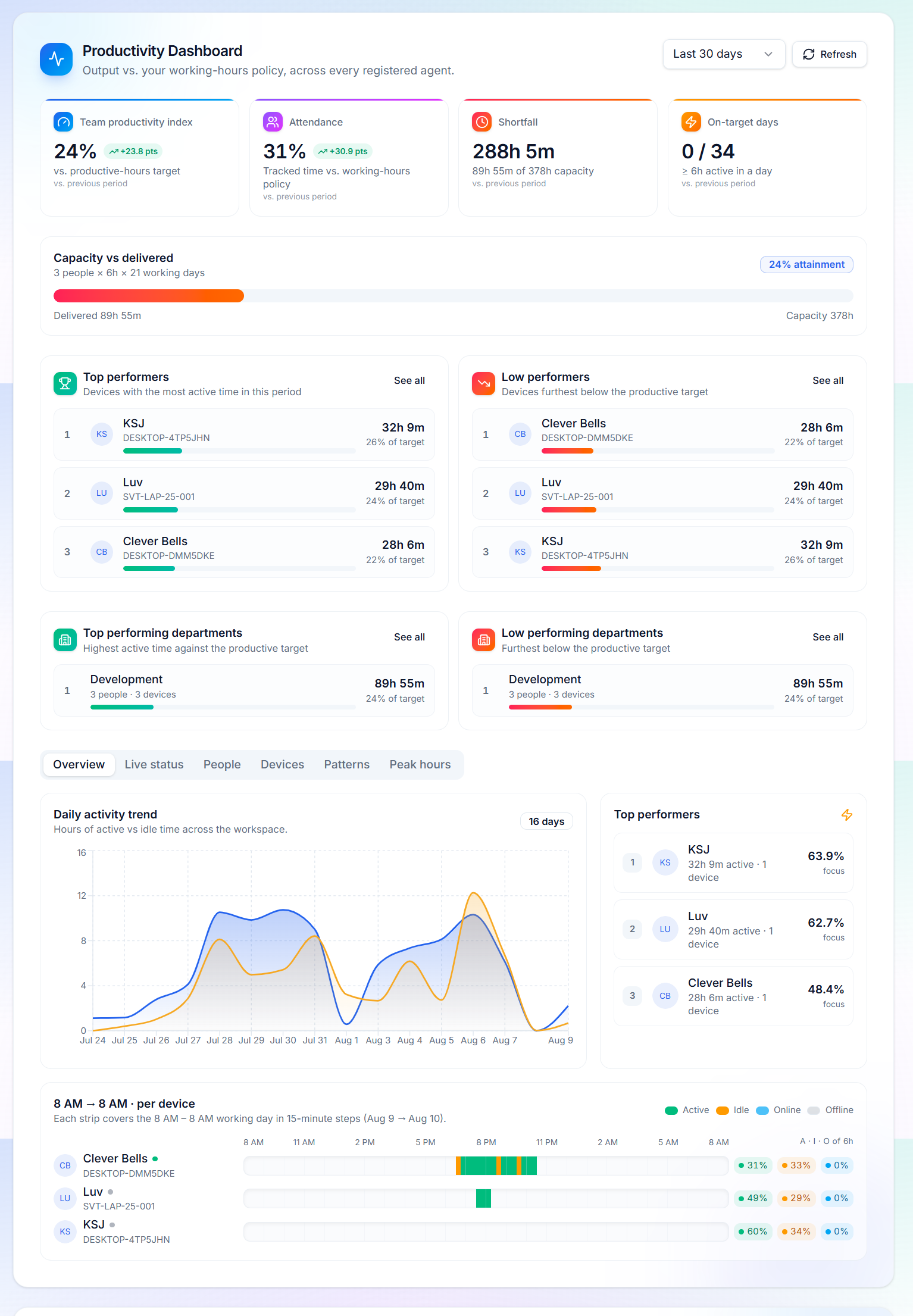
A lightweight Windows agent runs in the background on each team member's computer. It detects when the machine is active or idle, records which applications are in use and for how long, and streams that data to your Doezze workspace over a secure API. Everything rolls up into a real-time dashboard that shows attendance, focus time, and productivity — per person, per device, and per department.
No one has to remember to start or stop a timer. The data simply shows up.
What We Track
The Time Tracker collects four categories of information from each enrolled device:
1. Active & Idle Time
The agent monitors keyboard and mouse activity at the operating-system level to determine whether the workstation is active or idle. When no input is detected for the configured idle threshold (5 minutes by default), the device is marked idle. This gives you accurate attendance and working-hour figures without anyone pressing a button.
2. Heartbeats
Every 30 seconds, the agent sends a heartbeat to the Doezze backend. This confirms the device is online, the agent is running, and the latest status (active or idle) is current. Heartbeats power the real-time presence indicators you see in the dashboard and sidebar.
3. Application Sessions
Whenever a window comes to the foreground, the agent logs an application session that records:
- Process name — the underlying executable (e.g.
chrome.exe,Code.exe). - Application name — the friendly display name (e.g. "Google Chrome", "Visual Studio Code").
- Window title — the document or page title shown in the title bar (e.g. "Quarterly Roadmap — Doezze", "app.tsx — my-project").
- Start and end time — when the window gained and lost focus, in UTC.
- Duration — how long the window stayed in the foreground.
This is the richest signal in the system. It tells you not just that someone was at their computer, but what they were doing — coding, browsing, writing, in a video call, or context-switching between twenty tabs.
4. Device Metadata
On first enrollment, the agent registers the device with its computer name, operating system, logged-in user, and agent version. Admins can then map each device to a specific workspace member so that productivity is attributed to the right person.
What We Do Not Track
To keep the system respectful and privacy-friendly, the Time Tracker never captures:
- Keystrokes, screen content, or screenshots.
- File contents, clipboard data, or browser history.
- Camera feeds or microphone audio.
- Personal accounts or credentials.
It only sees which application held focus and for how long — enough to measure productivity, not enough to spy.
The Flow — From Device to Dashboard
┌──────────────┐     1. Register        ┌───────────────┐
│  Windows     │  ──── token ────────►  │  Doezze API    │
│  Agent       │                        │  /agent/register│
└──────┬───────┘                        └───────┬───────┘
       │                                        │
       │ 2. Receives JWT                         │
       ▼                                        ▼
┌──────────────┐   3. Heartbeat every 30s ┌───────────────┐
│  Agent runs   │  ─────────────────────► │  /v1/heartbeat │
│  in background│                         └───────┬───────┘
       │                                        │
       │ 4. App sessions (on focus change)      │
       ▼                                        ▼
┌──────────────┐  ──────────────────────► ┌───────────────────┐
│ Active/Idle  │                          │ application-sessions│
│ detection    │                          └────────┬──────────┘
└──────────────┘                                   │
                                                     ▼
                                          ┌────────────────────┐
                                          │ Doezze Database     │
                                          │ activity_logs,      │
                                          │ heartbeats,         │
                                          │ application_sessions│
                                          └────────┬───────────┘
                                                   │
                                          ┌────────▼───────────┐
                                          │ Productivity        │
                                          │ Dashboard & Insights│
                                          └────────────────────┘
Step 1 — Device Registration
When an admin enables the Time Tracker for the workspace, Doezze generates a permanent registration token. The Windows agent is installed on a team member's computer and, on first launch, it presents this token to the /agent/register endpoint. The backend verifies the token against the workspace, creates an agent record, and returns a signed JWT that the agent stores locally for all future calls.
Step 2 — Heartbeats & Activity
Once registered, the agent begins its two continuous loops:
- Heartbeat loop — every 30 seconds it POSTs the current active/idle status to
/v1/heartbeat. - Activity loop — every 60 seconds it batches any new application sessions (windows that gained or lost focus since the last upload) and POSTs them to
/v1/agent/application-sessions.
Step 3 — Device Mapping
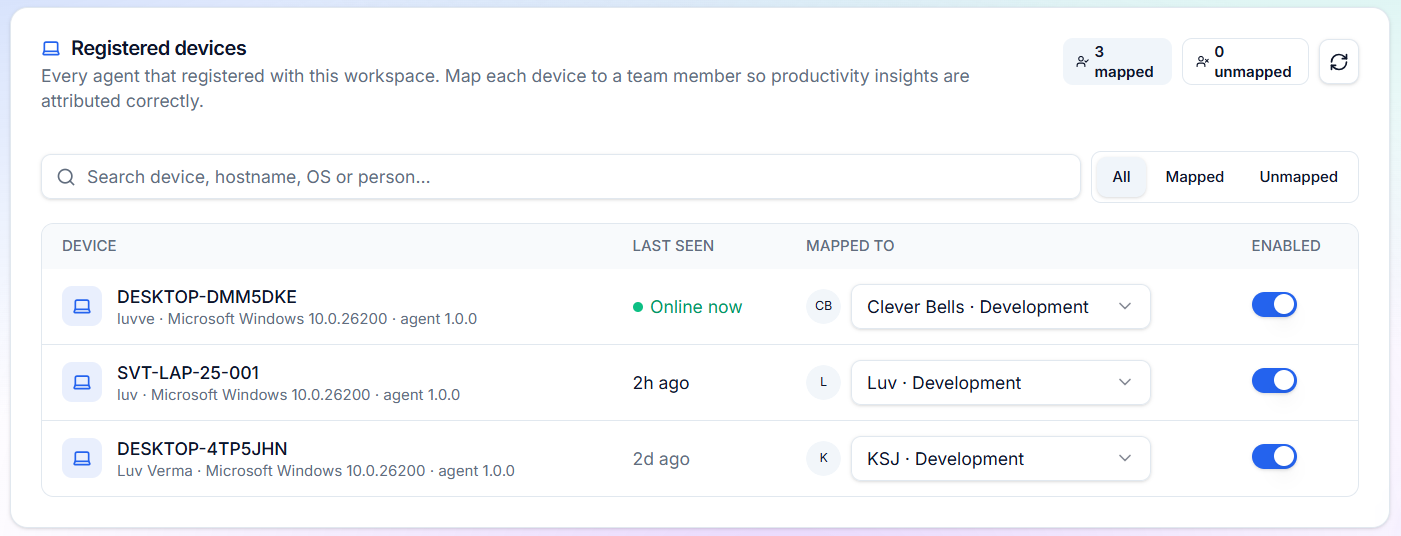
An admin maps each registered device to a workspace member via the Device Mapping card in settings. Until a device is mapped, its data is attributed to an unnamed device; once mapped, all productivity, attendance, and session data is attributed to the real person.
Step 4 — Dashboard & Insights
The backend aggregates raw events into a productivity score, active/idle breakdown, top applications, context-switching metrics, and deep-work sessions. These surface in:
- The Productivity Dashboard — team-wide KPIs, top/low performers, department comparisons, and per-device 24-hour timeline ribbons.
- Application Insights — a separate page that answers "where is time going?" with app usage breakdowns, context-switching analysis, session depth, workday patterns, and a live timeline of the last activity sessions.
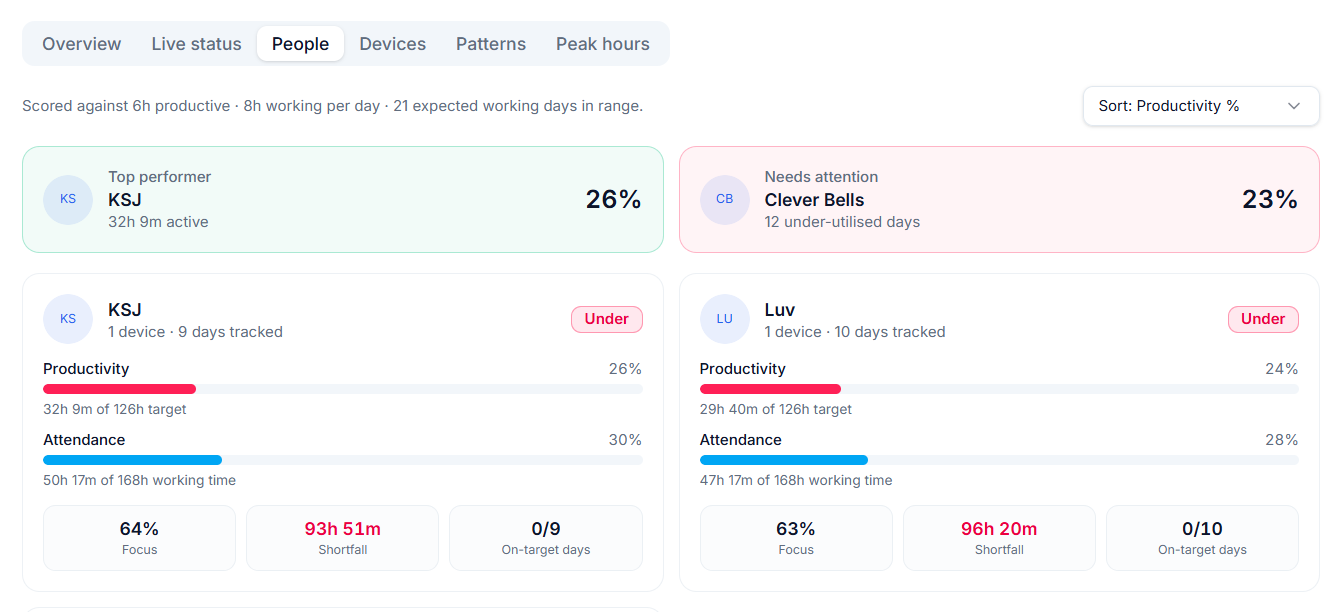
- Member Profiles & Reviews — each team member's profile shows their productivity, attendance, and shortfall numbers, which feed directly into the performance review module.
How to Use It — Step by Step
1. Request the Time Tracker Feature
Time Tracker is a gated module. In Settings → AI Usage, an Owner or Admin can request to enable it for the workspace. The Doezze Super Admin reviews the request and, once approved, the tracker settings appear.
2. Copy the Registration Token
Once enabled, go to Settings → Time Tracker. You'll see a Registration Token — a long, permanent string. Click Reveal to view it, then Copy. This token is unique to your workspace and never changes, so store it securely and share it only with the people installing the agent.
3. Install the Windows Agent
Install the Doezze Windows agent on each team member's computer. On first launch, the agent asks for the registration token. Paste the token, and the agent registers itself with your workspace and begins running in the background. No login or Doezze account is needed on the device — the token handles everything.
4. Map Devices to Team Members
In Settings → Time Tracker → Device Mapping, you'll see a list of every registered device. For each one, select the workspace member it belongs to. From that point on, all data from that device is attributed to that person.
5. Tune the Configuration (Optional)
Admins can adjust the tracker configuration to fit their team:
- Idle threshold — how many seconds of inactivity before a device is marked idle (default 5 minutes).
- Upload interval — how often the agent batches application sessions (default 60 seconds).
- Heartbeat interval — how often the agent checks in (default 30 seconds).
- Daily working minutes — the expected hours per day, used to calculate shortfall (default 480 minutes / 8 hours).
- Weekly working days — expected days per week (default 5).
- Productive minutes target — the minutes of active time expected per day (default 360 / 6 hours).
6. Explore the Dashboards
With data flowing in, head to the Productivity Dashboard to see:
- Today / 7 / 30 / 90 / 365 day views.
- Top Performers and Low Performers — the five most and least productive devices in the selected period.
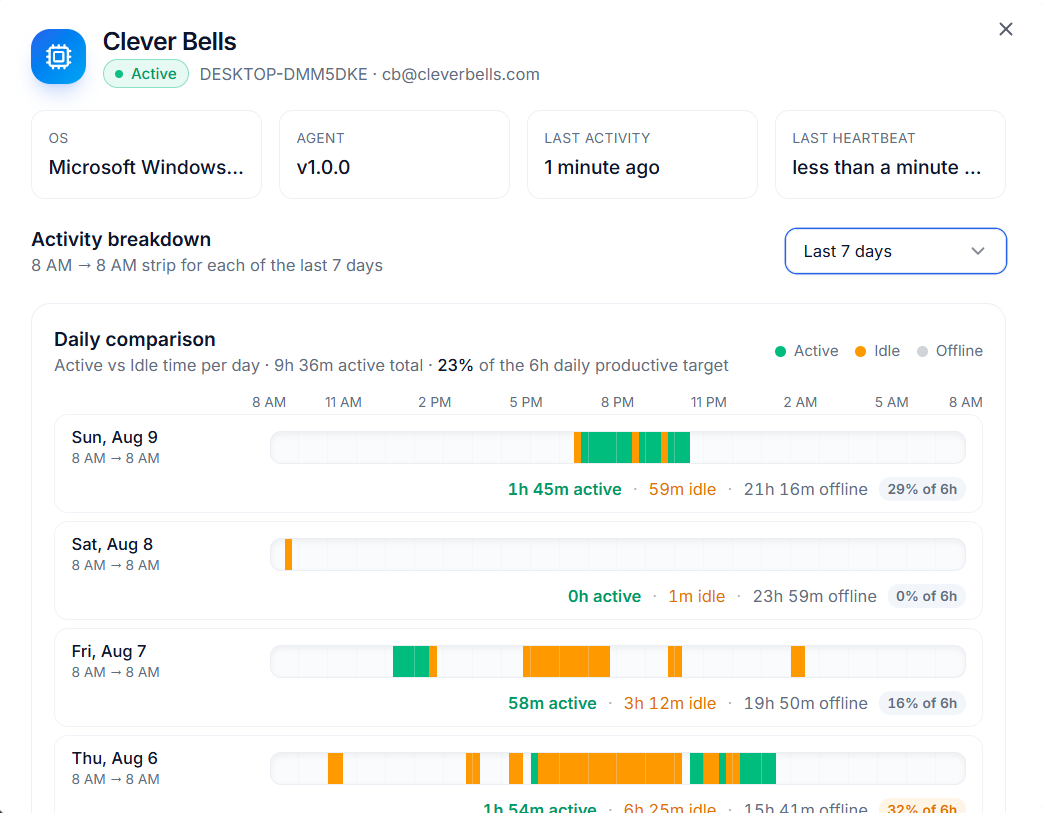
- Per-device timelines — a fixed 8 AM-to-8 AM ribbon showing active, idle, and offline stretches throughout the day.
- Department breakdowns — productivity by team, if you've set up departments.
For deeper analysis, open Application Insights (/app-insights) to see which apps dominate, how often people context-switch, how long deep-work sessions last, and a chronological timeline of the most recent activity.
7. Connect It to Performance Reviews
The same productivity, attendance, and shortfall metrics that appear in the dashboard are automatically pulled into each member's Performance Review profile. When a reporting manager runs a monthly, quarterly, or yearly review, they see real, data-backed numbers alongside qualitative feedback — closing the gap between what happened and how it's evaluated.
Summary
The Doezze Time Tracker is a zero-friction, privacy-respecting way to understand how your team's hours are actually spent. A background Windows agent automatically captures active/idle time, heartbeats, and application sessions — no manual timers required — and rolls everything into real-time productivity dashboards, application-level insights, and data-backed performance reviews. Install the agent, map it to your people, and let the data tell the story.
Continuer la lecture
How AI Eases the Project Manager's Day: Inside Doezze's AI Features
A practical look at how Doezze AI helps project managers, founders, and agency owners: AI planning, sprint prediction, semantic memory, and MCP integrations.
Feature GuideHR Reports in Doezze: Performance Reviews Backed by Real Work Data
Doezze HR Reports turn delivery, time-tracking, leave and recognition data into eight ready-to-use reports for review cycles — with time windows and one-click CSV export.